Image to PDF & PDF Reader
JK Breaking NewsProductivity
3.061.00 Reviews
- Version
- 1.0.3
- Installs
- 100.00K
- Age Rating
- Everyone
Screenshots
Our Review of Image to PDF & PDF Reader
 Analysis by Appyee
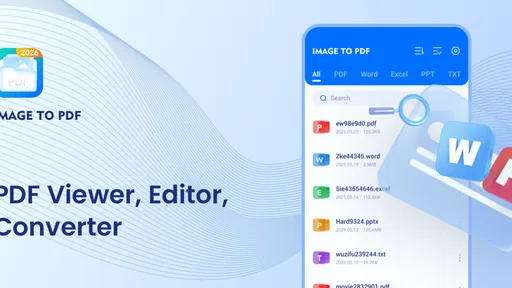
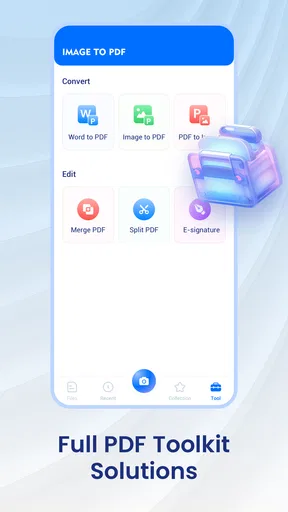
I approached Image to PDF & PDF Reader as a practical productivity tool rather than a full document office. Its purpose is straightforward: turn images into PDF files, then let me open, read, and make edits to PDF documents from an Android device. That narrow focus is useful when I need a quick document workflow without opening a large suite of office tools.
After using it for everyday document tasks, my impression is that it is best understood as a lightweight utility for moments when speed and simplicity matter more than advanced document management. I can imagine reaching for it after photographing a receipt, scanning a signed page, or receiving a PDF that needs a small correction before I send it onward. The free price also makes it easy to try without committing to a subscription.
The app comes from JK Breaking News and sits in the productivity category. It is suitable for Everyone, runs on Android 8.0 or later, and is currently at version 1.0.3. Its average rating is 3.8 from just over a hundred ratings, while its install count has passed one hundred thousand. Those figures suggest a modest but real user base, so I would treat it as an accessible utility rather than a mature replacement for a complete desktop PDF workstation.
How Image to PDF & PDF Reader feels in everyday use
I find this app most useful when a small paperwork task suddenly needs doing: turning a few phone images into a PDF, then checking the file without switching tools. In this section, I’ll focus on how that compact workflow fits into everyday routines and where a little preparation makes it more dependable. That also sets up the practical tradeoffs to consider before making it your regular document tool.
Quick tasks are where it makes the most sense
The strongest reason to use this app is the short path from an image on my phone to a PDF I can read or share. A typical example is a paper form on a kitchen table. I can capture the page with the phone camera, bring the image into the app, and create a document that is easier to send than a loose photograph. The same workflow suits receipts, handwritten notes, classroom pages, delivery records, and temporary paperwork.
That image-to-document workflow is more useful than it may first appear. A single photograph is easy to lose among other pictures, while a PDF gives the pages a clearer identity and keeps a multi-page set together. If I photograph several pages from the same form, combining them into one file is more practical than forwarding a group of unrelated images. The important advantage is not artistic presentation; it is reducing small bits of friction in a routine task.
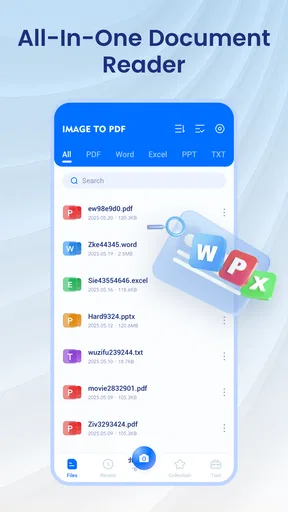
I also like the fact that the reading side and the conversion side belong in the same app. I do not have to create a PDF in one tool, locate a second reader, and then find a third editor for a minor change. For occasional users, that consolidation can matter more than a long feature list. The best use case is a short, self-contained document job that begins with an image and ends with a readable PDF.
What “fast” should mean here
For this kind of utility, perceived speed is less about impressive processing claims and more about how quickly I can get from the opening screen to the correct file. The app’s appeal depends on avoiding unnecessary steps. When I only need to convert a few images or inspect a document, a focused tool should feel less demanding than opening a full office suite with cloud accounts, templates, spreadsheets, and unrelated menus.
There is a useful distinction between a quick task and a large task. A small set of phone images is the situation in which I would expect the smoothest experience. A document made from many high-resolution photographs naturally asks more of the device, the storage system, and the app. I would not judge the utility by the same standard as a desktop publishing program, because its value is in handling ordinary mobile jobs without making them feel like a production project.
One practical habit helps keep the workflow responsive: prepare the images before importing them. Cropping out empty table space, removing duplicate shots, and choosing only the clearest page photographs avoids making the app process material I will not use. This is not a hidden setting, but it is an important real-world trade-off. Better input usually produces a cleaner result and a less cluttered conversion session.
When a normal day becomes a heavy-use moment
The first demanding situation is a long series of pages. A few images from a form are one thing; a thick packet of photographed pages is another. In that situation, I would work in smaller batches, check the order after each batch, and give the resulting file a clear name before moving on. Smaller groups are easier to correct if one image is sideways, blurred, or accidentally included.
A second demanding situation involves large camera images. Modern phones can produce files that are much larger than necessary for a simple reading document. If the source images are oversized, conversion can take more time and the final PDF can become inconvenient to store or send. I would resize or crop copies when possible, keeping the original photographs separately. That preserves the evidence while making the working document more manageable.
A third situation is switching between creation and editing. If I convert several images, open the new PDF, notice a page problem, and immediately repeat the process, the main risk is not necessarily speed; it is losing track of which version is current. My advice is to use clear filenames such as “form-draft” and “form-final,” then review the finished file before sharing it. This simple naming discipline is particularly valuable on a phone, where multiple similar documents can quickly blend together.
Reading and editing without overestimating the tool
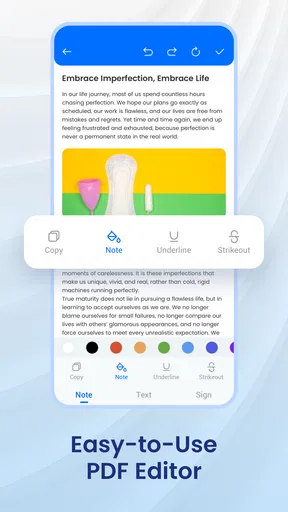
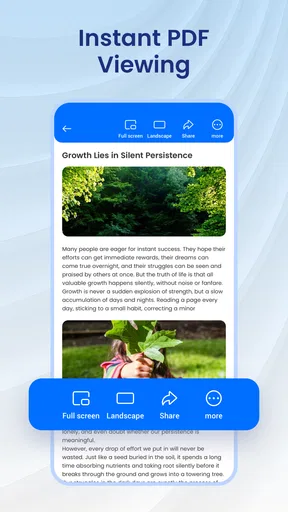
The PDF reader portion is useful when I simply need to inspect a document on the same device. That covers checking a downloaded instruction sheet, reviewing a converted set of images, or confirming that pages appear in the intended order. The editing promise is also helpful for small corrections, but I would keep my expectations realistic. A mobile utility aimed at quick processing is not automatically a substitute for professional layout software or a dedicated document-signing platform.
Before relying on an edited file, I would reopen it and read through every page. This is especially important when the document matters for work, school, travel, or official administration. Check that the page sequence is correct, that the writing is legible, and that no important edge of an image was lost. A quick visual review is a better safeguard than assuming that a successful save means the document is perfect.
There is also a difference between editing the PDF itself and changing the original image. If I need to correct the photograph, improve its framing, or remove a distracting background, I would do that before conversion with an image tool. If I only need to adjust the resulting document, the PDF workflow is more appropriate. Understanding that boundary prevents wasted time searching for image-editing controls inside a document utility.
Reliability: where careful habits matter
My reliability test for an app like this is not just whether it opens. It is whether I can recover sensibly when a conversion needs to be repeated, when I import the wrong image, or when I return to a document later. The safest approach is to keep original photos until the PDF has been checked. I would never treat the converted file as the only copy of an important page until I have confirmed that every detail survived the process.
For a multi-page document, page order deserves special attention. Phone galleries often sort images by capture time, but that order may not match the order of a paper packet if pages were photographed out of sequence. I would select images deliberately and inspect the finished PDF rather than trusting the gallery arrangement. This is one of the most useful workflow lessons because a perfectly readable document can still be unusable if its pages are shuffled.
Recovery is also easier when I avoid destructive cleanup too soon. After creating a PDF, I would keep the source images in a separate album or folder until the recipient confirms that the file works for them. If I later discover a missing page, a rotated image, or a poor photograph, I can rebuild the document without returning to the original paper. That extra step costs little and makes the process much less stressful.
For sensitive paperwork, I would think carefully before moving files around or sharing them. The app is convenient for personal documents, but convenience should not replace ordinary caution. I would review the recipient, the filename, and the pages attached before sending. This is particularly important for identity documents, financial records, school forms, and medical paperwork, where an accidental extra page can matter as much as the intended one.
Device limits and the Android experience
Because the minimum requirement is Android 8.0, the app can serve people using older Android devices as well as newer phones. That broad compatibility is useful, especially for someone who keeps an older handset as a backup scanner or document device. At the same time, compatibility does not mean every phone will feel identical. Available storage, memory, camera quality, and the size of the selected images can all influence how comfortable a conversion session feels.
On a device with limited free storage, I would avoid creating several duplicate versions of the same document. Image collections can grow quickly, and a PDF made from large photographs may occupy more space than expected. A sensible routine is to remove failed drafts after checking the final file, while retaining the original images that are genuinely important. This balances storage management with recovery options.
Older hardware is another reason to favor smaller batches. If the phone begins to feel sluggish during a large conversion, I would close unrelated apps, make sure there is enough free storage, and process fewer pages at a time. I would not use a single large job as the only test of the app’s quality. For a basic document, breaking the work into manageable sections is often more practical than forcing an older device to handle everything at once.
There is a similar consideration when reading PDFs with many image-heavy pages. A text-focused document is generally a lighter task than a file built from full-resolution camera shots. If the PDF is intended mainly for reading, preparing appropriately framed images before conversion can make scrolling more comfortable and sharing more convenient. The app can be useful here, but the quality of the source material still controls much of the final experience.
Comparing it with the usual alternatives
The most obvious alternative is a general office suite. That option is better when I need tables, presentations, cloud collaboration, advanced formatting, or a broad set of file types. It may also be preferable in a workplace that already depends on a particular document ecosystem. Image to PDF & PDF Reader is more appealing when those extra tools would only slow me down and my task begins with photographs or existing PDFs.
A dedicated scanner app may be a stronger choice when the main priority is capturing paper cleanly. Scanner-focused tools often center their experience on edge detection, perspective correction, contrast, and document cleanup. I would choose one of those when I regularly scan many pages and need the camera stage to do more of the work. This app makes more sense when I already have images or want a simple bridge between images and PDFs.
A standalone PDF reader can be better for people who spend most of their time reading large documents and need specialized navigation or annotation features. Likewise, a professional PDF editor is the safer choice for complex forms, detailed redactions, advanced signatures, or precise layout changes. The advantage here is convenience, not depth. It brings conversion, viewing, and basic document handling into one approachable place.
There is also the built-in file manager and gallery. Those are enough for opening an occasional PDF or sharing a photograph, but they do not necessarily provide the same focused image-to-PDF path. If I only need to view a file once, the built-in tools may be faster because they are already familiar. If I repeatedly turn groups of images into documents, a dedicated utility earns its place more easily.
Who will appreciate it, and who should skip it
I would recommend this app to students who need to package photographed notes, freelancers sending a few pages to a client, families organizing receipts, and anyone who occasionally receives a document that needs a quick look or minor adjustment. It is also a reasonable choice for an older Android phone used as a simple paperwork station, provided there is enough storage for the images and resulting files.
I would be more cautious about recommending it to someone who scans paperwork every day, manages confidential business archives, or needs a strict professional document workflow. Those users may benefit more from a dedicated scanner, a full PDF editor, or an office platform with established collaboration and storage features. The same applies to anyone expecting sophisticated image cleanup or desktop-level layout control.
It is also not the right choice if the real problem is organizing a large document library. Converting one packet is different from tagging, searching, synchronizing, and maintaining hundreds of files. In that case, a document-management system will solve the larger problem more effectively. This app can create useful PDFs, but it should not be mistaken for an entire filing strategy.
My performance verdict after using the workflow
My final view is favorable, with a clear condition: use Image to PDF & PDF Reader for focused mobile document jobs, not as a universal replacement for every PDF tool. Its free availability, broad Android compatibility, and combined image conversion and PDF handling make it approachable. The workflow is especially sensible when I need to turn a few existing images into a file that is easier to read and share.
The most important performance lesson is to control the input. Clean, correctly ordered, reasonably sized images give the app a much better chance of feeling quick and dependable. Smaller batches, descriptive filenames, and a final page-by-page check also make recovery easier if something goes wrong. Those habits are more valuable than simply pressing convert and hoping the result is ready.
With an average rating of 3.8, the response from users appears mixed rather than universally enthusiastic, so I would install it with practical expectations. Version 1.0.3 is suitable for trying the core workflow, but I would test it first with a non-critical document before trusting it with irreplaceable paperwork. For occasional conversion and reading, I think it is worth considering; for intensive scanning, advanced editing, or organized document management, a more specialized alternative will likely serve you better.
My recommendation: choose it when you want a free, direct way to process images into PDFs and handle the resulting files on Android. Keep the originals, review every page, and let the size of your workload decide whether this focused utility is enough or whether you need a heavier document solution.
Verdict
Strengths of Image to PDF & PDF Reader
- Converts multiple images into a single PDF quickly.
- Supports common image formats such as JPG and PNG.
- Built-in reader makes it easy to review created PDF files.
- Useful for scanning receipts, notes, and documents on the go.
- Simple interface suitable for users with little PDF experience.
Limitations of Image to PDF & PDF Reader
- Free features may be limited by ads or in-app purchases.
- Large image collections can take longer to process.
- PDF editing options may be basic beyond conversion.
- Output quality can vary depending on the original image resolution.
- Some features may require access to device storage and photos.
Similar Picks in This Category
View All
Google Calendar
Google LLC4.6

Google Drive
Google LLC4.3

Google Assistant
Google LLC3.9

Microsoft OneDrive
Microsoft Corporation4.6

Samsung Calendar
Samsung Electronics Co., Ltd.4.1

Microsoft OneNote: Save Notes
Microsoft Corporation4.6
Frequently Asked Questions
What is Image to PDF & PDF Reader used for?
Image to PDF & PDF Reader is designed to convert pictures and scanned documents into PDF files directly from a mobile device. During testing, it was useful for combining photos of receipts, notes, forms, and school pages into a single document. It also provides tools for opening, browsing, and managing existing PDF files, making it suitable for basic document work while traveling or away from a computer.
How do I convert images into a PDF file?
To create a PDF, you generally select images from your phone’s gallery or capture new pages with the camera, arrange them in the desired order, and confirm the conversion. The app may also provide simple options such as cropping, rotating, or adjusting page order before saving. Results are best when images are well lit, sharply focused, and photographed from a straight angle.
Can Image to PDF & PDF Reader scan documents with the camera?
Yes, the application can be used for camera-based document scanning on supported devices. This is convenient for turning printed pages, invoices, identification copies, or handwritten notes into digital PDFs. However, scan quality depends heavily on lighting, camera focus, and the contrast of the original paper. Users should review every page before exporting, especially when the document contains small text.
Does the app support reading and managing existing PDF files?
The PDF reader lets you open and view documents stored on your device or imported through compatible sharing options. Basic reading features typically include page navigation, zooming, and document browsing, which are sufficient for everyday use. Depending on the version, advanced functions such as editing text, adding signatures, annotations, or rearranging PDF pages may be limited or require a premium option.
Is Image to PDF & PDF Reader free and safe to use?
The app can usually be downloaded and used without an upfront payment, although some features may be supported by advertisements, optional purchases, or subscription offers. Before installing, check the current Google Play Store or App Store listing for pricing and permissions. Since documents can contain private information, review the app’s privacy policy and avoid uploading sensitive files unless you understand how they are processed.
